Step 3: Servers
Which servers? Name the servers, enter the accounts and passwords, and have the servers checked.
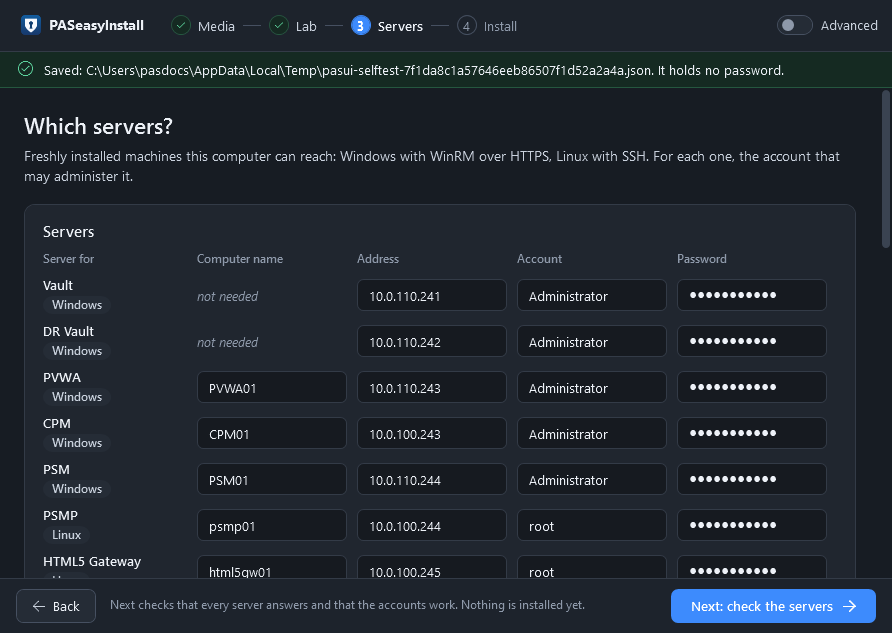
The servers
The card Servers has one line per server the lab needs, in the order they are installed. The servers must be freshly installed machines this computer can reach: Windows with WinRM over HTTPS, Linux with SSH (Server prerequisites).
| Column | What to enter |
|---|---|
| Server for | What the server becomes, for example PVWA + CPM, PSMP + HTML5 Gateway or PTA (RHEL family, 8 GB), with Windows or Linux below it. Components that share a server are one line. |
| Computer name | The name the server already has. PVWA is reached under this name later (https://<name>/PasswordVault). not needed for the Vault servers. The field starts with a default (PVWA01, psmp01, ...): replace it with the real name. |
| Address | The IP address (or DNS name) of the server. Every server needs its own. |
| Account | A local administrator on Windows (default Administrator), root on Linux. |
| Password | The password of that account. |
With a new domain there is one more line, Domain controller: the server that becomes the domain controller. Its administrator becomes the administrator of the new domain, with the same password, and that password is also set as the restore mode password of the domain. With a domain you already have, the line Existing domain (a DNS server of it) takes the address of one of its DNS servers and a domain account that may join computers.
The Vault passwords
The card Vault:
- New Vault: Vault Administrator password and Vault Master password, the passwords to set for the Vault users Administrator and Master; with a DR Vault also Vault DR user password, for the user the DR Vault replicates with. Letters, digits and the usual signs, no space and no double quote.
- Use existing Vault: Address of the Vault you already have and Password of the Vault user Administrator (the password it has now).
With PSMP, an HTML5 Gateway or PTA in the lab, tick I have read and accept the CyberArk end user license agreement of the Linux installers (PSMP, HTML5 Gateway, PTA).
Passwords are kept in memory only, never in a file.
Keep these entries
Save the lab file... writes the lab, the servers, their names and accounts to a file, so that you need not type them again. No password is saved, and no server is contacted. Open the file later with Open a saved lab file on the start page: the form is filled in, and you add the media and enter the passwords again. The same button is on the Install step.
Next checks the servers
Next: check the servers changes nothing on any server. Missing or wrong entries are listed first, and nothing is checked until they are corrected. Then the button says Checking... and a box says which part is running:
- Part 1 of 2, a few seconds: does every server answer at its address?
- Part 2 of 2, up to a minute per server: can the account sign in, and is the server ready (operating system, free disk space, no pending restart, and more)?
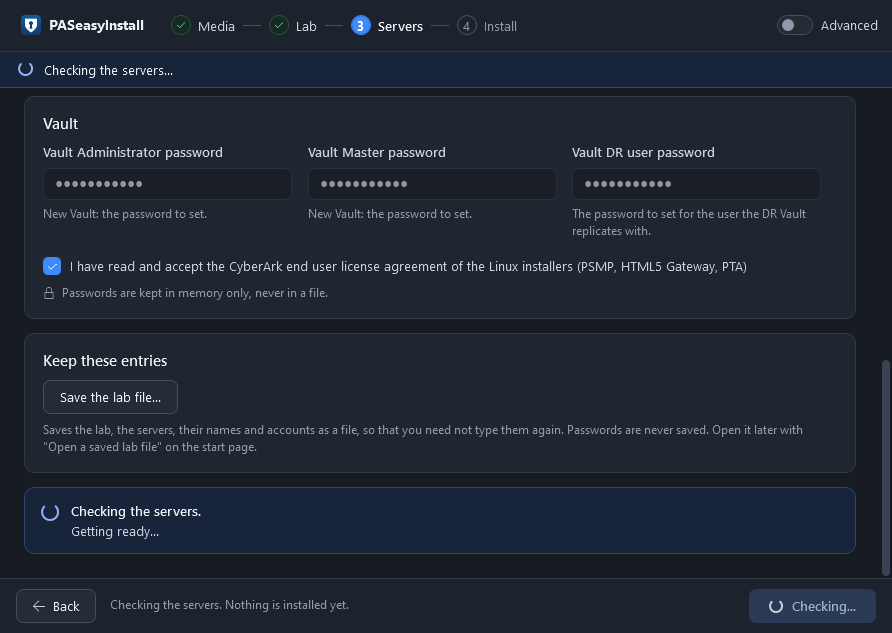
- When a server does not answer, part 2 is not run.
- The servers are not ready lists every problem with its server and the reason. Correct it and press Next again.
- When every server passed (All servers answered and look ready), the Install step is shown.
A wrong root password of a Linux server is found here: the check signs in the way the installation will. It also looks at what the server is: a server for PTA must be of the RHEL family with 8 GB of memory, and the check says so when it is not.
Advanced
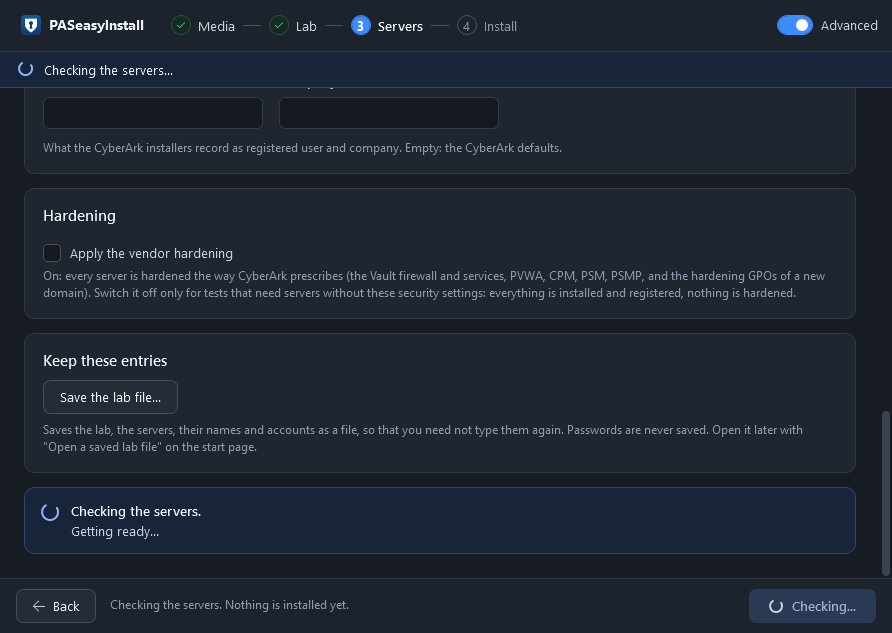
| Card | What it is for |
|---|---|
| (the check result) | After the server check: one line per check and server, with its result. |
| Network | Address of this computer as the Vault sees it. The firewall of the hardened Vault is opened for this address only. The window fills in the address it found; change it when this computer has several. |
| Who installs | User name and Company that the CyberArk installers record. Empty: the CyberArk defaults. |
| Hardening | Apply the vendor hardening, on by default. See below. |
| PTA | Time zone of the Vault server as a tz database name, for example Europe/Berlin. PTA reads the times in the Vault audit with it. Empty: UTC. Only with PTA in the lab. |
Installing without hardening
With Apply the vendor hardening switched on, every server is hardened the way CyberArk prescribes: the Vault (firewall and services), PVWA, CPM, PSM, PSMP, and the hardening GPOs of a new domain.
Switch it off only for tests that need servers without these security settings. Everything is installed and registered, nothing is hardened. The Install step and the question before the installation then say The servers will NOT be hardened. It cannot be switched on afterwards for an installed lab. More: Lab and Secure profiles.
Next: Step 4: Install.