Step 4: Install
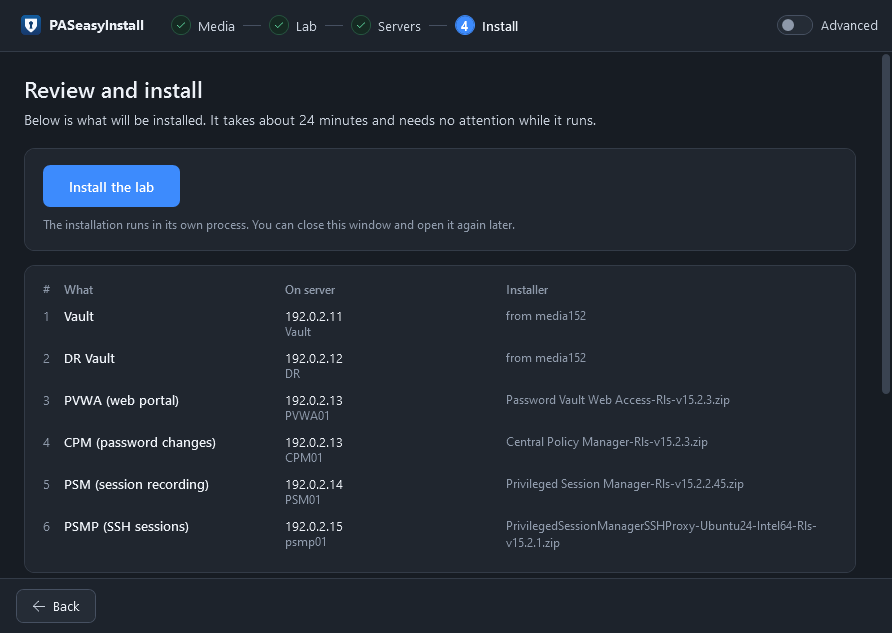
Review and install. Read what will be installed, then press Install the lab. Until you press it and confirm, nothing is changed on any server.
The plan
The line at the top says roughly how long the installation takes. Right below it is Install the lab, so it is in view without scrolling, however long the plan is. Below the button, one line per component: its number, what it is, on which server (address and name), and which installer file is used.
The numbers are the order of the plan, not a waiting line: the servers are installed at the same time (Servers at the same time).
If the plan has problems, the page says The plan has problems. Nothing can be installed until they are solved and lists them under To solve; there is no Install button then. Go Back, correct the entry and come here again.
Lab shortcuts in use
What this lab relaxes compared with a production installation, for example self-signed certificates or remote desktop to the Vault from this computer. They are fine for a lab and not for production. The box is collapsed: its title says how many shortcuts there are, and Show the list opens it. Each one is explained on Lab and Secure profiles. The window always uses the Lab profile.
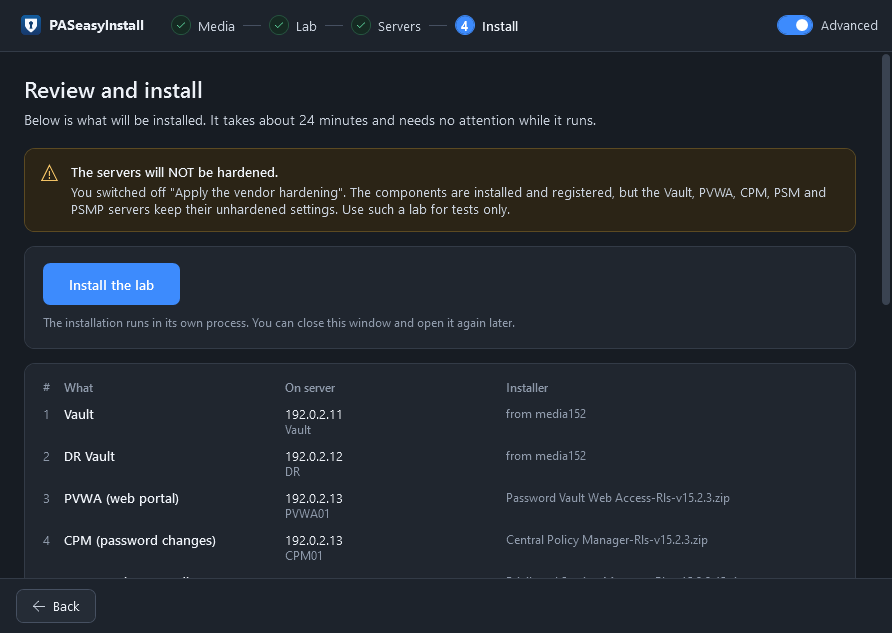
If you switched off Apply the vendor hardening on the Servers step, a box above Install the lab says so:
Save the lab file
The card Keep these entries has Save the lab file...: it writes the lab and its servers as a JSON file,
without any password. Open it again with Open a saved lab file on the start page, with
Start-PASeasyInstall -Config <file>, or install it from the prompt with Install-PASLab -Path <file>.
With Advanced on, the card The same from PowerShell takes its place: it shows the commands that build the same lab from the prompt, with the same save button below them.
Install the lab
Install the lab asks once more before it starts (Install the lab?). The question names the number of servers, and it repeats the warning when the servers will not be hardened.
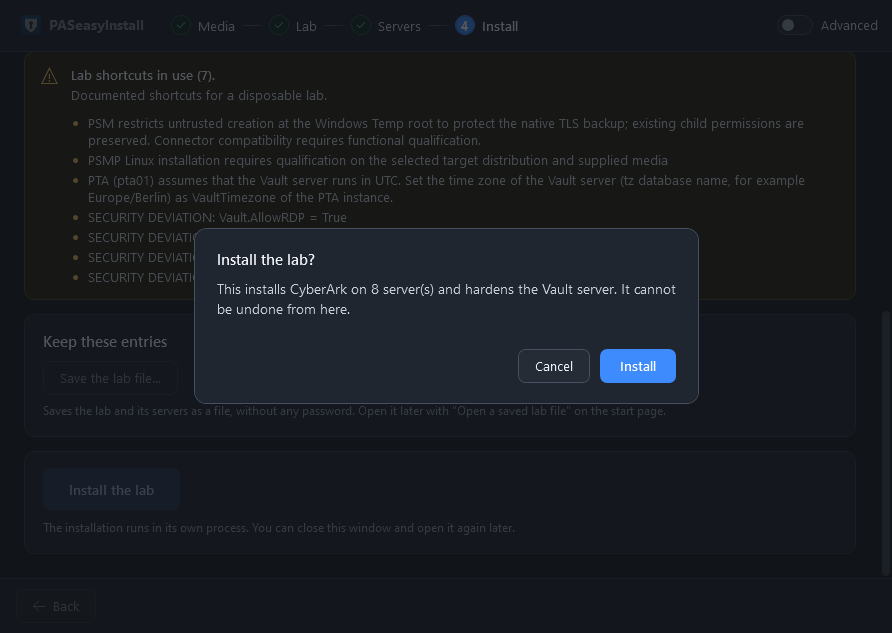
After Install the window says Starting the installation... and stays usable while the installer checks the plan and the installer files and starts its own process. Then the installation page opens.
An installation cannot be undone from the window. To start again, reset the servers to their clean state.