The installation page
Every installation has a page. It opens when you press Install, and again when you Open an installation on the start page. The installation itself runs in its own process: close the window whenever you like (Running on its own: you can close this window and open it again later).
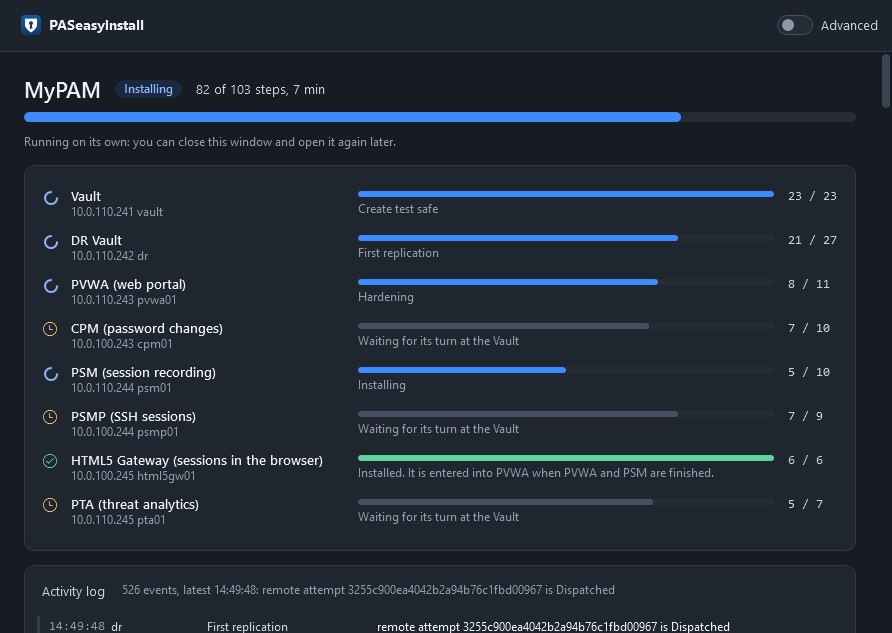
What you see
- The headline: the name of the lab, its state, how many steps are done of how many, and how long it has been running, with a progress bar.
- One line per component: its server, a progress bar, the step it is on, and steps done of steps in all. A server that joins a domain has a line Joining the domain of its own.
- Several components work at once. A server does everything that needs no other server straight away.
- Waiting for its turn at the Vault: the component is ready to sign in to the Vault (to register). It waits until the Vault is installed, and then for the components before it, because only one may sign in to the Vault at a time. The order is PVWA, CPM, then PSM and PSMP; PTA comes last.
- Waiting for PVWA: a component that has to trust the PVWA certificate (CPM, PSM, the HTML5 Gateway or PTA on another server) starts when PVWA has created it, shortly after the start.
- Waiting for the Primary Vault: the DR Vault waits for the keys of the Primary Vault, and later for the Primary Vault to be ready.
- Waiting: the component has not started yet. On a server with two components the second one waits for the first.
- Activity log: press it to unfold every event of the installation, the newest first: time, component, step and message. Folded, it shows the number of events and the latest one.
PSM restarts its server several times, PTA restarts its server once after the installation, and a server that joins a domain restarts once. That is expected.
An HTML5 Gateway is installed early, because it needs no Vault. Its line then says Installed. It is entered into PVWA when PVWA and PSM are finished: that entry is made on the PVWA server near the end, after PVWA, PSM and PTA are finished.
When it stopped
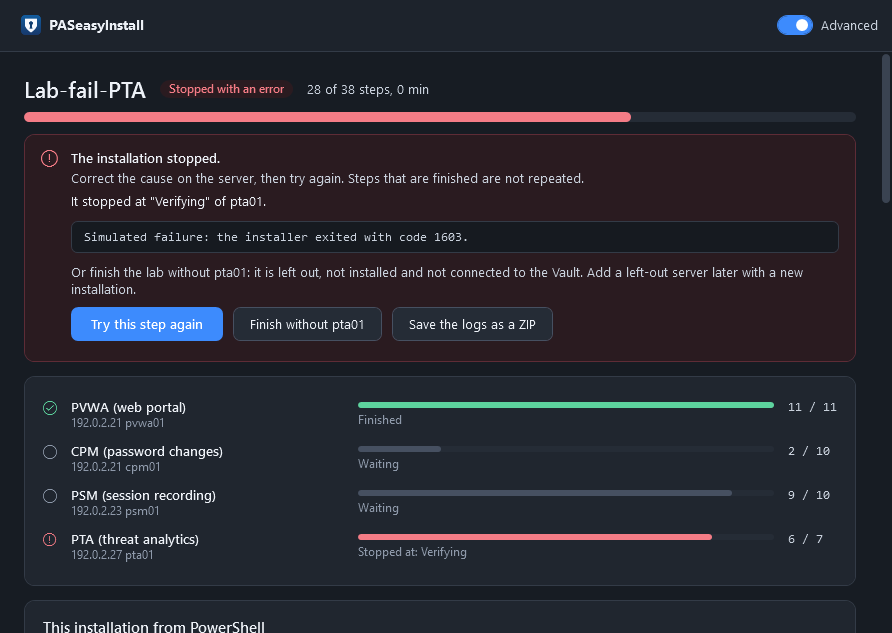
The red box The installation stopped names the step and the component (It stopped at "..." of ...) and shows the installer's own error text. A server that fails stops only what depends on it: every other server is installed to the end, and a server that could not go on says Not continued: a server it depends on failed (see Servers at the same time). Nothing is undone.
The buttons appear when the run has ended: the other servers finish first, and the line of the failed server says so meanwhile. When several servers failed, the box shows the step and the error text of each one. The buttons leave every server that is installed and verified as it is. Only the servers that stopped are started again: their finished steps are looked at once (Checking what is already installed), then the failed step runs.
Look at the server and correct the cause. Then:
| Button | What it does |
|---|---|
| Try this step again (with several failed servers: Try the failed steps again) | Runs the failed step of every server that stopped again, then continues the installation. Use it when you corrected the cause. |
| Finish without the servers that failed | Leaves those servers out, after you confirm, and finishes the rest of the lab without them (see below). |
| Continue the installation | Continues without running a step again. Only offered when no step failed: after an interrupted installation, or when the result of a step is unclear and the server may still be working on it. |
| Save the logs as a ZIP | Writes the journals of the installation into a ZIP without passwords, for a bug report. |
A failed step is never repeated on its own. That is on purpose: an installer whose outcome is not known must not simply run twice. So continuing without trying the failed step again would only stop at the same step again; the window does not offer it then.
Finish without the servers that failed
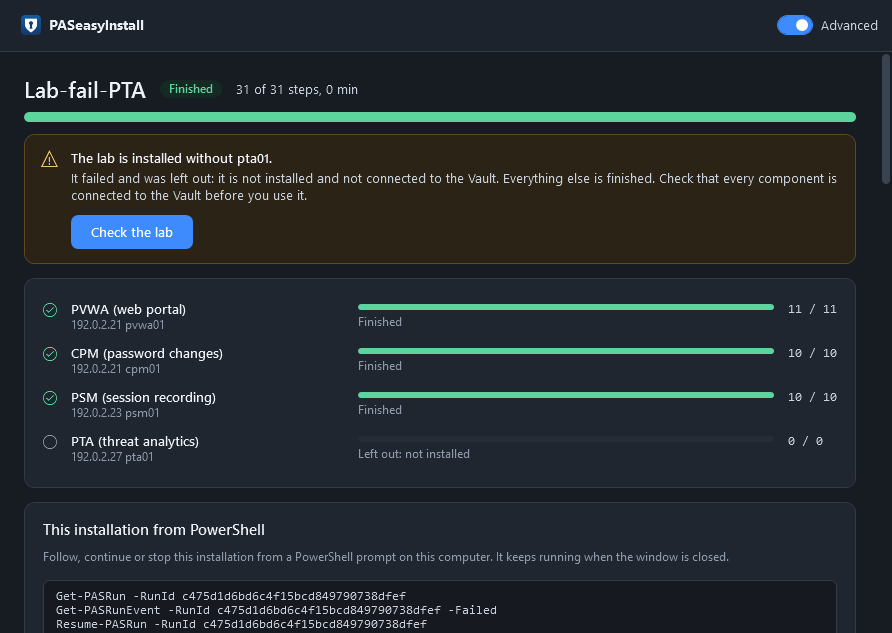
When a server cannot be installed now, for example a PTA server, Finish without its name finishes the lab without it. The servers that failed, and those that were not continued because of them, are left out:
- they are not installed and nothing waits for them any more;
- what can be done without them is finished: the HTML5 Gateway entry in PVWA, the PTA trust of PVWA (only for the PTA servers that are installed) and the hardening GPOs of a new domain;
- the installation ends as finished, with the box The lab is installed without ..., and their lines say Left out: not installed. Check the lab leaves them out too.
The servers stay as they are; nothing is undone on them. A left-out server stays left out of this installation:
add it later with a new one. The Vault, the DR Vault, the domain controller and the first PVWA cannot be left
out, the lab needs them; the button is then not offered. From the prompt this is
Resume-PASRun -RunId <id> -LeaveOut pta01.
If the window was closed in between, it asks for the accounts and passwords again before it continues.
When it finished
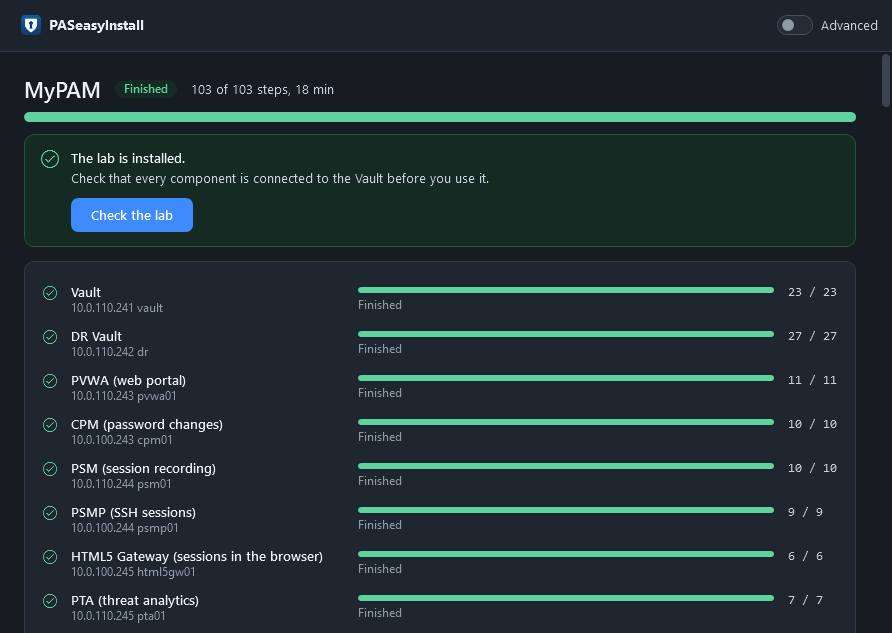
The lab is installed. Check the lab signs in to the Vault through PVWA and lists the components the Vault sees, each connected or not connected, with its server and version. With a DR Vault it also asks for the account of the DR server and looks at the replication. It changes nothing.
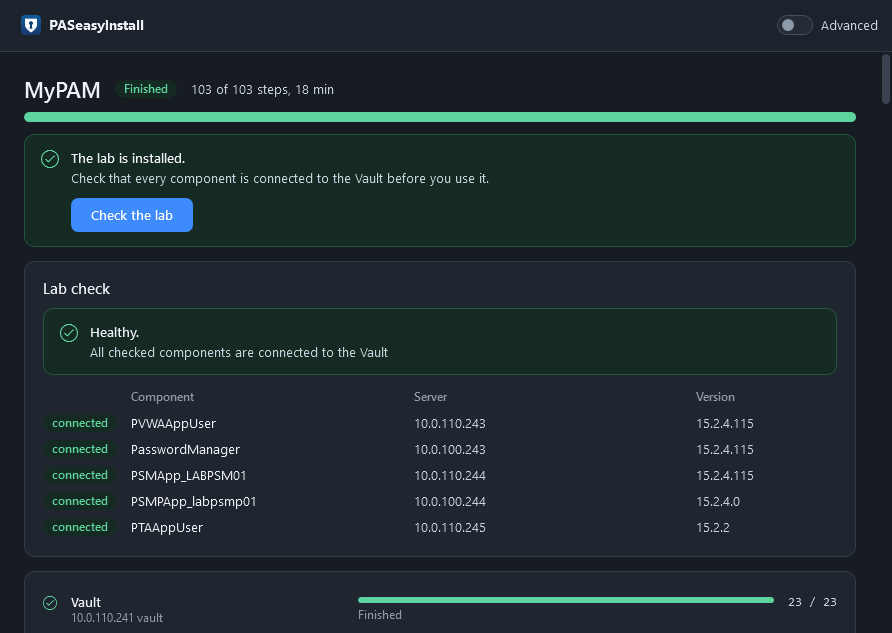
Healthy means every component of the lab is connected to the Vault. Otherwise Not healthy yet lists what is wrong; see Troubleshooting.
Then open the web portal at https://<computer name of the PVWA server>/PasswordVault and sign in as
Administrator with the Vault Administrator password. In a lab the certificate is self-signed, and the computer
with the browser must resolve the PVWA name (a hosts entry is enough).
Advanced: PowerShell commands and Stop
With Advanced on, the card This installation from PowerShell shows the commands for this installation, with its run id filled in: look at it, list what failed, continue it, stop it, save the logs. The activity log is unfolded.
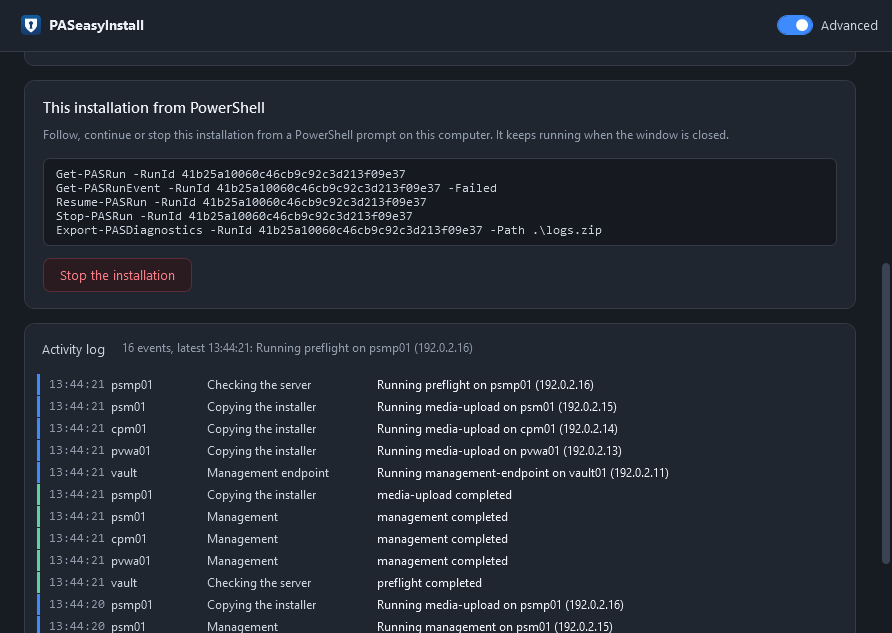
While the installation runs, the card also has Stop the installation. After you confirm, the window ends the
installation as Stop-PASRun -RunId <run id> -Force does.
A step that is running on a server at that moment is not interrupted, the servers keep what was installed until
then, and the locks on the servers stay. A stopped installation (Stopped by you) cannot be continued: restore the servers (for example from a snapshot)
before you install them again; see
Stop-PASRun.
The commands are explained in Run commands.